
Ape Apps Launcher Developer Documentation
Any web-based application or game can be manually added to the Ape Apps Launcher by the user, but now the Launcher has been opened up for all developers to actually have their web-based project indexed and cataloged on the main Launcher app listing, greatly improving user discoverability and overall experience.
Before getting started, take a look at the demo application that gives a complete example of how to implement Launcher support and discoverability into your web app.
Requirements
As stated before, the user may add any external website as an app to the Ape Apps Launcher on their own. However, when an app is added to the Launcher that meets all of the following requirements, it will automatically be detected and indexed by the Launcher and then made available to install and launch from right within the Launcher interface, complete with your own icons and artwork.
Keep in mind that there is no approval process for this, and the rules as to what kind of content can be added to the Launcher are pretty loose. That said, Ape Apps does not allow content of an adult or illegal nature, and such applications will not be indexed, although individual users are still free to add them to the Launcher on their own accord. Apps may also be pulled from that index at any time and for whatever reason. Moderation is extremely light, but it is not non-existent.
In addition, developers are free to use whatever form of advertising or monetization in their app that they deem fit. The Launcher does not provide you with payment processing, nor will it inject its own ads into your application.
With all of that out of the way, developers who would like their app or game to be added to the Launcher index must have the following things:
- An active Ape Apps Account. Once your app is indexed, but before it goes live to the public, you will need to check it in the Launcher and then approve it. The app will be linked to your account, and you will be able to check its stats or pull it from the index using the developer panel within the Launcher itself.
- A Web Application Manifest. The Launcher parses standard PWA app manifest files with a couple of added fields to control how the app looks in the index.
- Your own server. You host your app or game on your own server. The Ape Apps Launcher does not provide hosting for web apps. In the future, support is planned for indexing third party applications packaged using apepack, but that feature has not yet gone live.
- Your web app must work within an iframe element, specifically an iframe that is hosted by launcher.ape-apps.com. Some people configure their sites and applications to block external iframes, and for good reason. You may still do that on your server, but you need to add an exception for the launcher.ape-apps.com origin. This is especially critical for users who run the launcher in the 10-foot Gamepad Mode interface, as the gamepad overlay will not work unless the app is properly hosted within an iframe.
So those are the extent of the requirements in order for your app or game to be indexed. Next we will look at setting up your Web App Manifest in a way that allows the Launcher to index your app.
Web Application Manifest
Meta data for your application will be parsed from the manifest file. The Ape Apps Launcher uses the standard Web Application Manifest that should already be present in a modern web application. The manifest is a simple .json file that describes information about your application. The demo application contains a complete manifest with all fields recognized by the Launcher. To create your own though, add a new file in the root directory of your web application called manifest.json and add a reference to it in your head tag like this:
<link rel="manifest" href="manifest.json" />
Creating a manifest file for your web app is good practice, as it will allow Chromium based browsers to install your application as a stand-alone program on both desktop and mobile devices. You can see the MDN article references above for a complete list of Manifest fields, but the Launcher is specifically interested in the following standard fields, as well as a couple of non-standard launcher-specific items.
{
    "name": "Ape Apps Launcher Example",
    "description": "An example showing how to get an application automatically indexed by the Ape Apps Launcher.",
    "start_url": "https://testing.ape-apps.com/launcherexample/",
    "theme_color": "#000000",
    "icons": [
        {
            "src": "https://testing.ape-apps.com/launcherexample/icon.png",
            "sizes": "192x192",
            "type": "image/png"
        }
    ],
    "categories": ["game", "role playing"],
    "display_override": null,
    "ape_launcher": {
        "author": "bastecklein",
        "banner_wide": "https://testing.ape-apps.com/launcherexample/wide.png",
        "banner_tall": "https://testing.ape-apps.com/launcherexample/tall.png",
        "banner_square": "https://testing.ape-apps.com/launcherexample/square.png",
        "gamepad_support": false
    }
}
| Field | Description |
|---|---|
| name | This one is obvious. The Launcher can also utilize the optional short_name field if necessary. |
| description | Also obvious, let's users know what your app or game is about. |
| start_url | Many manifest files just put a / here, which will default to the root directory relative to the manifest file. For broadest compatibility outside of just the Launcher though, it is a good habit to put the complete absolute URL of your web app. |
| theme_color | Depending on the users' operating system and Launcher display mode, your apps title bar may use the color set in the manifest file. |
| icons | A manifest can specify multiple icon files. The Launcher will choose the highest resolution icon listed by default. |
| categories | For indexing and categorization. If nothing else, at least add the "game" category if your application is a game. |
| display_override | This is an optional field, but if the display_override is set to ["window-controls-overlay"], your app will be rendered without a title bar at all when launched from the native desktop client, so be sure to handle titlebar area if you enable this. |
| ape_launcher.author | Your Ape Apps Account username. This is required for you to be able to approve and administer your application. |
| ape_launcher.banner_wide | Optional. The banner for your application shown in the main index when the Launcher is in Desktop mode. For best rendering, the suggested resolution is 1024x500. This banner should include the apps name. If you do not include this, your app will still show up in the index, but it will not look that great. |
| ape_launcher.banner_tall | Optional. The banner for your application shown in the main index when the Launcher is in Gamepad mode. For best rendering, the suggested resolution is 480x720. This banner should include the apps name. If you do not include this, your app will still show up in the index, but it will not look that great. |
| ape_launcher.banner_square | Optional. The banner for your application shown in the user's installed apps library when the Launcher is in Gamepad mode. For best rendering, the suggested resolution is 512x512. This banner should include the apps name. If you do not include this, your app will still show up in the index, but it will not look that great. |
| ape_launcher.gamepad_support | Either true or false, indicating if your app supports gamepad input. You should only put true if your app can be used 100% with a gamepad. |
Detecting the Launcher From Code
If all you do is implement the manifest as described above, your app will be fully supported by the Ape Apps Launcher. However, you may wish to detect whether or not your app is running in a Launcher environment, who is using your app, and what mode they are using the Launcher in. This is done quite simply, and using this detection will allow you to provide a better and customized experience for your users.
Interfacing with the Launcher is done using simple standard cross frame messaging. Depending on what mode the user has the Launcher running in and what type of device they are using it on, you will either need to call postMessage from the window.parent or window.opener object. You can work this out however you want, but to make things easier, you can just drop this simple Javascript function into your app and use it to make your Launcher calls.
function postMessageToLauncher(message) {
    let target = null;

    if(window.parent && window.parent.postMessage) {
        target = window.parent;
    }

    if(window.opener && window.opener.postMessage) {
        target = window.opener;
    }

    if(!target) {
        // Probably not running in the Launcher
        return;
    }

    target.postMessage(message, "https://launcher.ape-apps.com");
}
Early in your applications lifecycle, you will want to post a message to the Launcher to get its current status. The window's load event would probably be a good place to do this. You will also need to add a listener for the message event so that you may receive the response given from the Launcher. This process is straightforward.
window.addEventListener("load", function() {
    postMessageToLauncher({
        type: "launcher-request",
        request: "get-status"
    });
});

window.addEventListener("message", function(event) {
    if(event.origin == "https://launcher.ape-apps.com") {
        const message = event.data;

        if(message.type && message.type == "launcher-status") {
            const status = message.result;

            const username = status.username;
            const mode = status.mode;
        }
    }
});
The status object returned by the Launcher currently provides two properties, username and mode. If you receive a response from the Launcher, then you can obviously infer that your app is currently running in a Launcher context.
The username field will contain the Ape Apps Account username of the user who is currently logged in to the Launcher, or it will be either null or undefined. If the username is indeed returned, then you know that the user has been authenticated and their credentials are verified. You can use this information to save per-user settings and data.
The mode field will return either "desktop" or "gamepad". You should use this information to make any necessary style or interface adjustments to your app for the given input method. If the user is in gamepad mode and your app does not support gamepad, you should let them know.
Finally, in your interface you should give the user a mechanism to actually quit your application. This is critical especially in Gamepad Mode, as your app will be open full screen with no default close button. To have the Launcher close your app, you can wire up a button or any other element you choose to execute the following:
postMessageToLauncher({
    type: "launcher-request",
    request: "quit-application"
});
Sending Users to your Application
To share a link to your app or game, you can use the Ape Apps Launcher URI protocol.
web+apelauncher://webapp/https://testing.ape-apps.com/launcherexample/
If you direct a user to that link, either through a regular a tag on a website, or by sharing via email, and that user has the Ape Apps Launcher installed on their system, it will automatically install your app to their library.
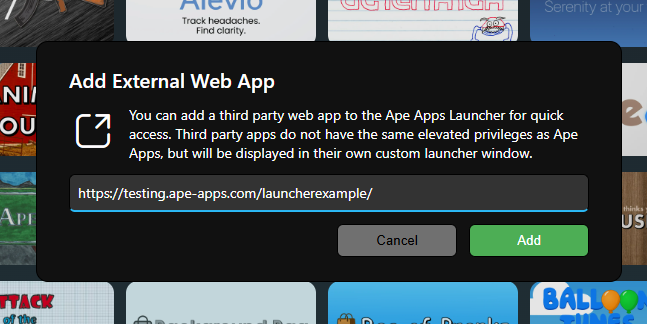
Additionally, a user can install your web app manually from the Launcher (when in Desktop mode) by clicking on the (+) button on the bottom-right corner of the screen and selecting Add External Web App. They can then manually enter the URL to your application.
Indexing and Approval
When an external web application is added to the Launcher using one of the methods described above, the manifest.json file is parsed and analyzed. If it contains the necessary fields as described above, including the ape_launcher.author field, it will be automatically added to the Launcher index.
If one of your apps or games has been added to the index, it will need to be approved (by you) before it goes public and shows up in the main app listing. You will need to log in to the Ape Apps Launcher using the same username specified in your manifest file. Then, while in Desktop mode, click on your user profile icon at the top-right of the main toolbar. If you have any indexed apps associated with your account, you will now see a Developer option in the user dropdown menu.
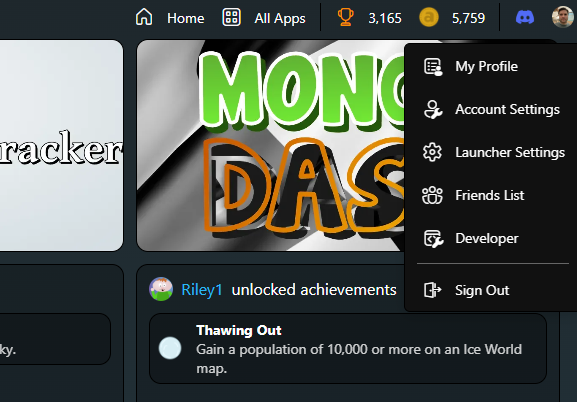
From the Developer portal, you can approve your pending indexed apps, remove apps from the listing and check install and usage statistics for your application.
Moving Forward
Third party application support for the Ape Apps Launcher is still in its infancy, and if there is interested in expanding the integration and capabilities, I will happily do so. If you have questions or feedback related to developing web applications for the Ape Apps Launcher, please head over to the Ape Apps Discord channel!